
Nordic Smart IPTV: Setting Up IPTV on Samsung and LG Smart TVs the Right Way
Most Nordic homes already own a Samsung or LG television. Here is how to turn it into a reliable IPTV screen in under twenty minutes.
· 6 min read · Nordic Play IPTV editorial team
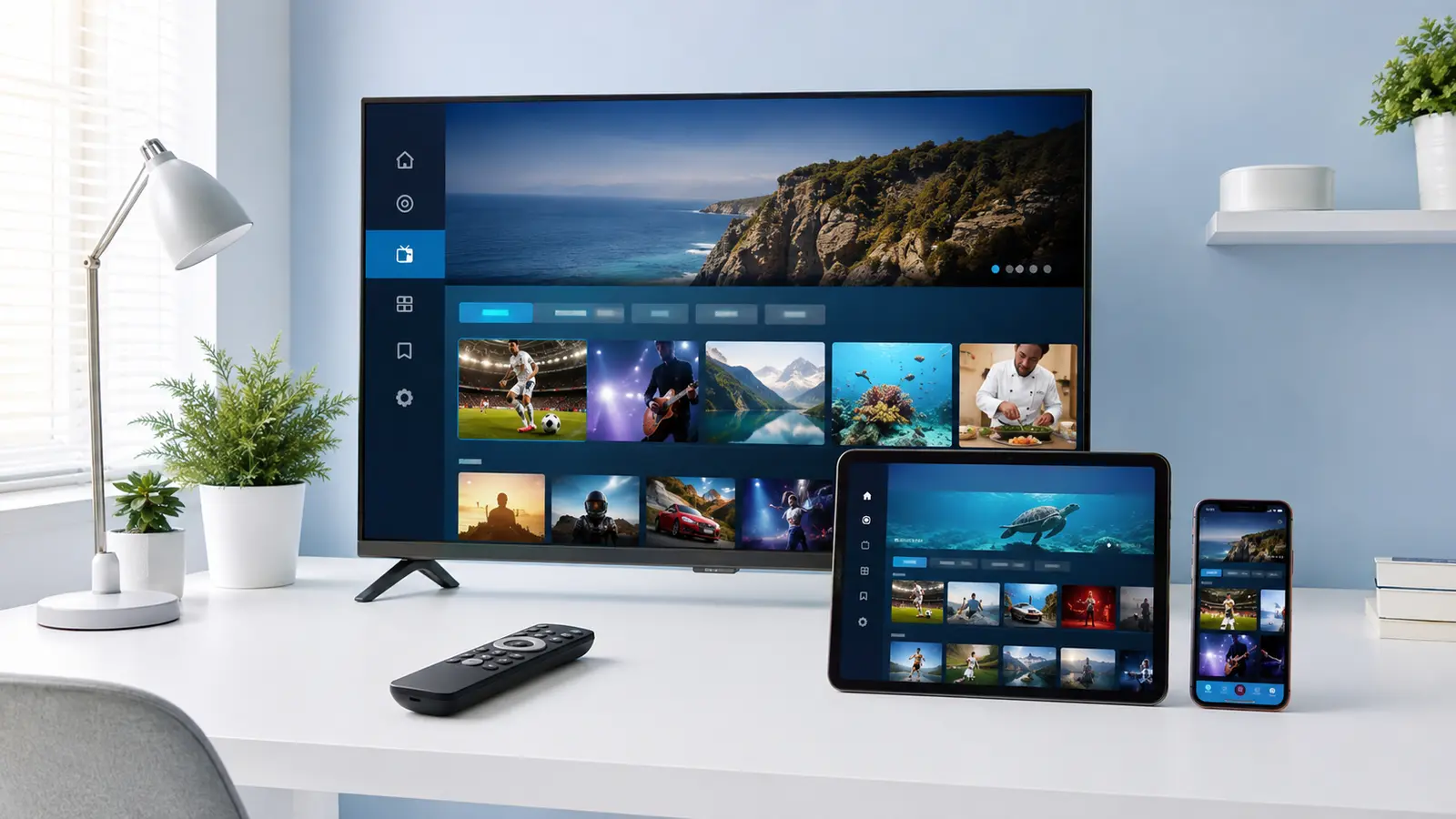
Samsung and LG dominate Nordic living rooms, and both brands run their own TV operating systems: Tizen on Samsung and webOS on LG. Neither supports IPTV out of the box, but both have excellent player apps available in their stores. This guide walks through a nordic smart iptv setup from an empty TV to a working channel list with a correct programme guide, with the pitfalls that generate most support tickets clearly flagged.
Before you start
Have the following ready:
- Your subscription details from your provider, usually a playlist URL or login credentials.
- The TV connected to the internet, preferably by Ethernet cable rather than Wi-Fi.
- The TV's software updated to the latest version via Settings.
- A phone or laptop nearby for entering long URLs through the provider's web portal where supported.
Choosing an app
Both platforms offer several players. The most widely used on Samsung and LG are the Smart IPTV family of apps, Set IPTV and a handful of newer alternatives. There is no single bästa iptv appen for everyone; the choice depends on how you like to browse channels and whether you want features such as catch-up and multi-screen. For a side-by-side look at the three most popular players, see our IPTV Extreme vs Set IPTV vs Smart IPTV comparison.
A few guidelines:
- Prefer apps with an active developer and recent updates.
- Check that the app supports the playlist format your provider uses.
- If you want recordings or timeshift, confirm the app supports them on your TV model.
- Some apps charge a small one-time activation fee per TV. This is normal and separate from your IPTV subscription.
Step-by-step on Samsung (Tizen)
- Press the Home button and open Apps.
- Search for your chosen IPTV player and install it.
- Open the app and note the MAC address or device code shown on screen.
- On a phone or laptop, visit the app's upload portal and enter the MAC address together with your playlist URL. Some apps let you type the URL directly on the TV instead.
- Return to the TV, restart the app and wait for channels to load.
- Open the EPG and confirm programme information appears.
Step-by-step on LG (webOS)
- Press Home and open the LG Content Store.
- Search for and install the IPTV player.
- Launch the app and record the device identifier.
- Add your playlist via the app's portal or directly on the TV.
- Restart the app and check that channels and the guide load.
Fixing the five most common errors
Channels load but nothing plays
Usually a network problem. Switch from Wi-Fi to Ethernet, or move the router closer. Test the same channel on a phone on the same network to isolate the TV.
The EPG is empty
The app may need the EPG URL added separately, or the guide may still be downloading. Give it a few minutes and check the app's EPG settings.
Programme times are one hour off
Set the EPG time offset in the app to match your time zone, and confirm the TV's clock is correct.
The playlist expired or was removed
Some apps remove uploaded playlists after inactivity. Re-upload the URL via the portal.
Buffering every evening
Evening congestion on Wi-Fi is the usual culprit. Ethernet nearly always solves it. If it persists, work through our driftstörning troubleshooting guide, then contact nordic iptv support with the time, channel and device so they can check their side.
Picture settings worth changing
- Turn off motion smoothing for sport unless you like the "soap opera" look.
- Set the picture mode to Standard or Cinema rather than Dynamic.
- Enable Game Mode only if you notice input lag when navigating; it can reduce picture processing quality.
Multiple TVs and simultaneous connections
Each TV counts as one connection when it is actively streaming. If you have two televisions and a phone that are often used at the same time, you need a plan with three connections. Choosing too few connections is the most common reason streams stop unexpectedly in multi-screen homes.
Keeping things running
Update the app and the TV firmware periodically, keep your playlist URL private and bookmark your provider's support channel. If a nordic iptv driftstörning occurs, check the provider's status updates before changing anything on the TV; most outages are resolved without any action on your side.
Frequently asked questions about Smart TV setup
Do I need a separate box if I have a Samsung or LG TV?
No. Both platforms have capable IPTV players in their official stores, and for most households the TV's native app is the simplest and most stable route. A separate Android box becomes worthwhile only if you want recording or a specific app such as TiviMate.
Why does the app ask for a MAC address?
Several Smart TV players use the TV's network MAC address as a device identifier so you can upload your playlist from a phone or laptop rather than typing a long URL with a remote. It is normal and does not give anyone access to your TV.
Is the app activation fee part of my IPTV subscription?
No. The small one-time fee charged by Set IPTV or Smart IPTV apps goes to the app developer and is separate from what you pay your provider. Think of it as buying the remote control rather than the channels.
My older Samsung has no app store. What can I do?
Very old Tizen or Orsay models may not support current players. A low-cost Android TV box or Fire TV Stick connected to an HDMI port is the practical solution and often provides a better experience than the ageing TV software.
Can I use the same playlist on two TVs?
Yes, as long as your plan has enough simultaneous connections. Each TV actively streaming counts as one connection, so two TVs watched at the same time need a two-connection plan or higher. Once set up, our Nordic channel guide shows what to expect in each country's lineup.
Conclusion
A nordic smart iptv setup on Samsung or LG is straightforward when you follow the sequence: update the TV, choose an actively maintained app, add your playlist correctly, verify the EPG and use Ethernet where possible. Twenty minutes of careful setup saves hours of frustration later.
Related articles
Bästa IPTV Appen 2026: The Best IPTV Apps for Nordic Viewers Compared
The app you choose shapes your entire viewing experience. We compare the leading IPTV players across every platform common in Nordic homes.
READ ARTICLE
IPTV Extreme vs Set IPTV vs Smart IPTV: Which Player Should Nordic Viewers Choose?
Three of the most searched IPTV players, compared head to head on the things that matter: platforms, EPG, features, stability and price.
READ ARTICLENordic Play IPTV Review 2026: An Honest Look at Channels, Stability and Support
What does Nordic Play IPTV actually deliver day to day? We examine the channel lineup, streaming stability, apps and support so you can decide with confidence.
READ ARTICLE